
Follow a rollout from the dashboard
This walkthrough starts a canary rollout on the node you are signed in to, watches the change reach the canaries and then the whole fleet, finds the node that is holding it, and replays the push once it is over. Everything happens on that node's dashboard; the other members need nothing beyond their usual gossip.
[mesh] enabled = true, the epoch author key on the node you push from, and a dashboard account with write access on that node. The views below read the push states and delivery fields.1. Start the rollout
With the policy change in this node's configuration, open Settings → Configure, choose the Fleet sub-view and press Push to mesh. Switch the dialog to a staged rollout and name one or two canaries, by node or by role. Phase 1 carries the change to the canaries only. The same call from a script is POST /api/config/rollout/start.
2. Watch the Fleet view
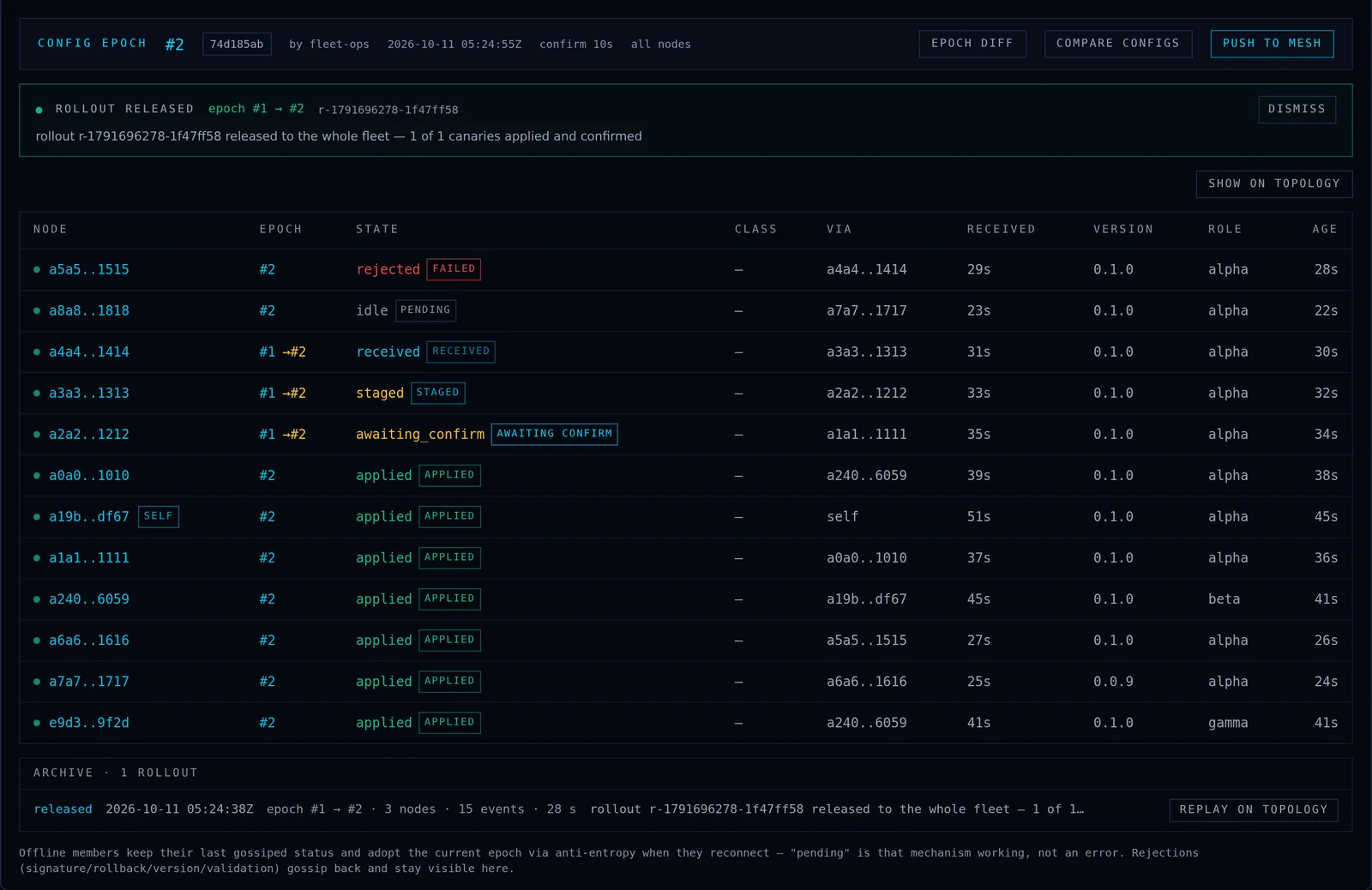
The Fleet sub-view now tracks the rollout. During phase 1 it splits into the canaries and the nodes held on the previous policy. Each row is a member: its epoch, its state, a push-state chip, Via (the neighbour whose gossip delivered the epoch, self on your node) and Received (when it arrived). While the rollout runs, rows sort worst first: failed, silent and old version at the top, then nodes still on their way, then the applied.
3. See it on the topology
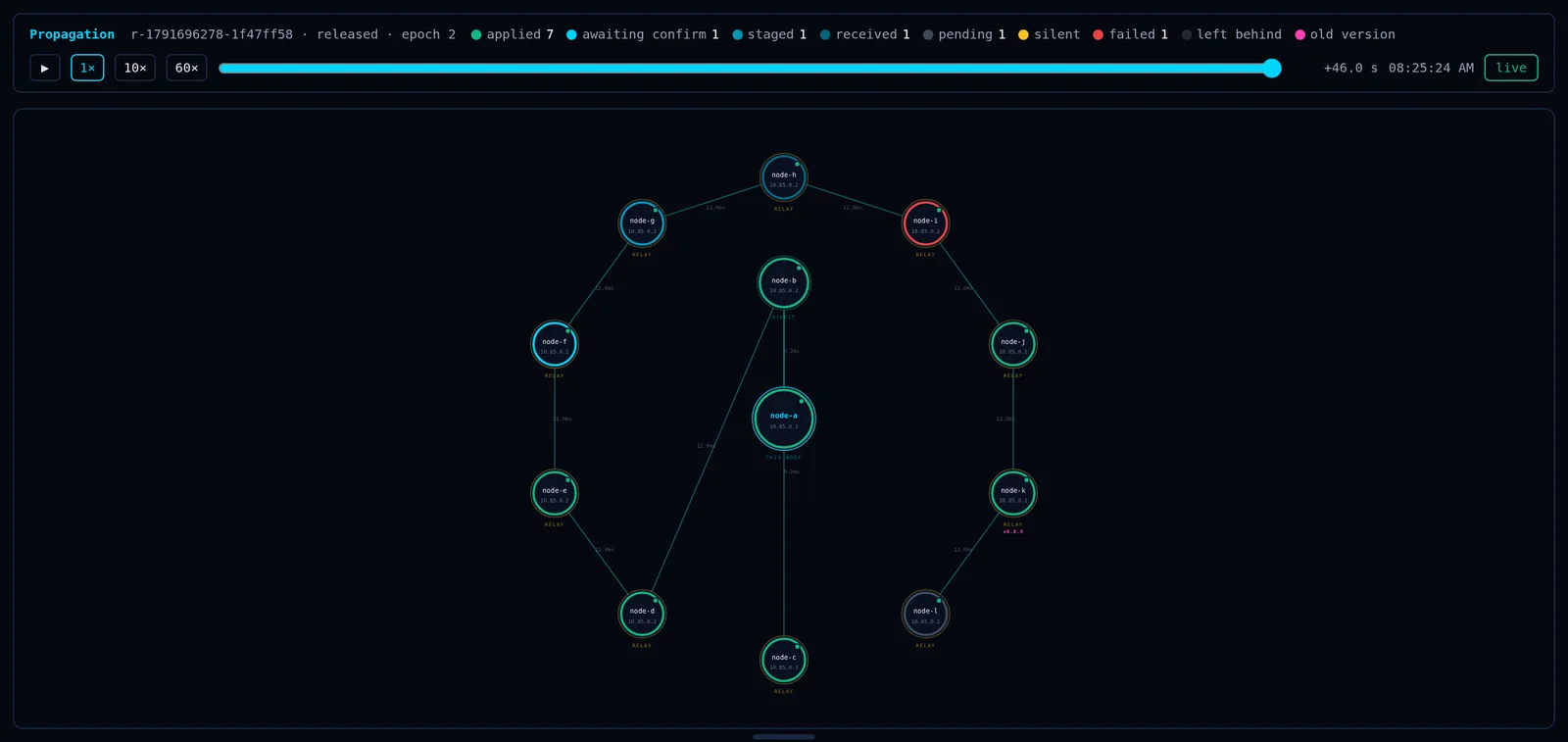
Press Show on topology, or open the Topology tab and switch Propagation on. Each node takes a ring in its push state, with the count per state in the legend. A pulse runs along the link each node's copy arrived on, and the delivered hops stay as faint lines, so the path the push took reads at a glance. A dashed arc from your node means the copy came through a node that is not on this canvas. A small version label marks any node running a different build from most of the fleet.
4. Find the node holding the release
The gate opens only when every canary has applied. A canary still pending is on its way; one marked silent has said nothing past the watch deadline and is holding the release; one marked failed blocks it, and its row shows the reason (signature, rollback, version or validation). Reach the silent node, or abort: abort signs the previous policy as a newer epoch and sends it to the canaries. When the gate opens, release, and phase 2 carries the same policy bytes to the whole fleet.
5. Replay it
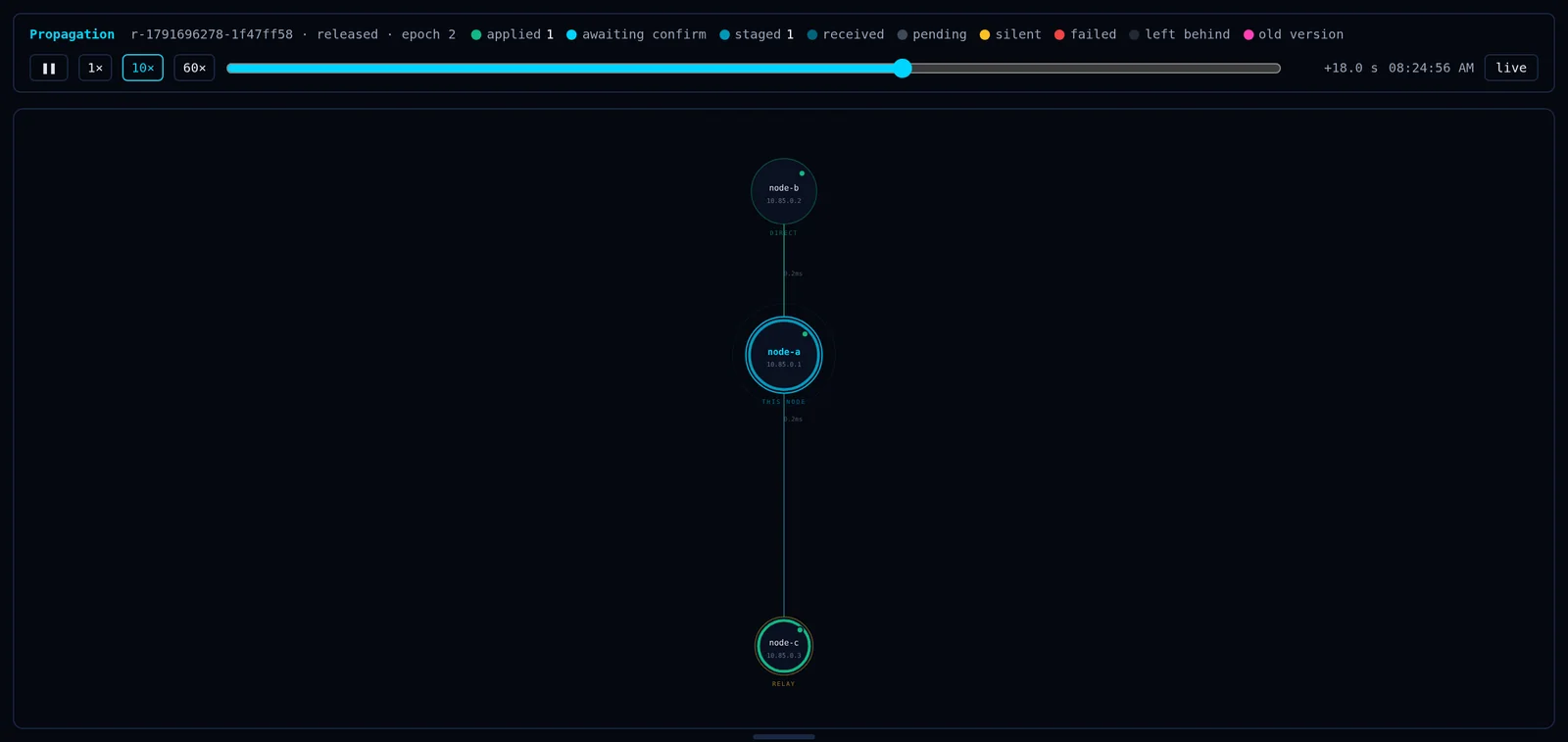
Drag the scrubber to any point of the rollout, play at 1×, 10× or 60×, or step from one event to the next with ← and →. live snaps back to now. After the rollout ends and every node settles, the push is archived: the Fleet view's Archive list shows each past rollout with its outcome, and Replay on topology plays it again.
With several instances on one host, Full Topology tints only the nodes of the instance that owns the rollout. For scripts, the same data is in GET /api/config/rollout and GET /api/config/rollouts.